Set up a welcome email for new subscribers
Before you start
Have a mailing list, recognizable sender details, and an authenticated sending domain.
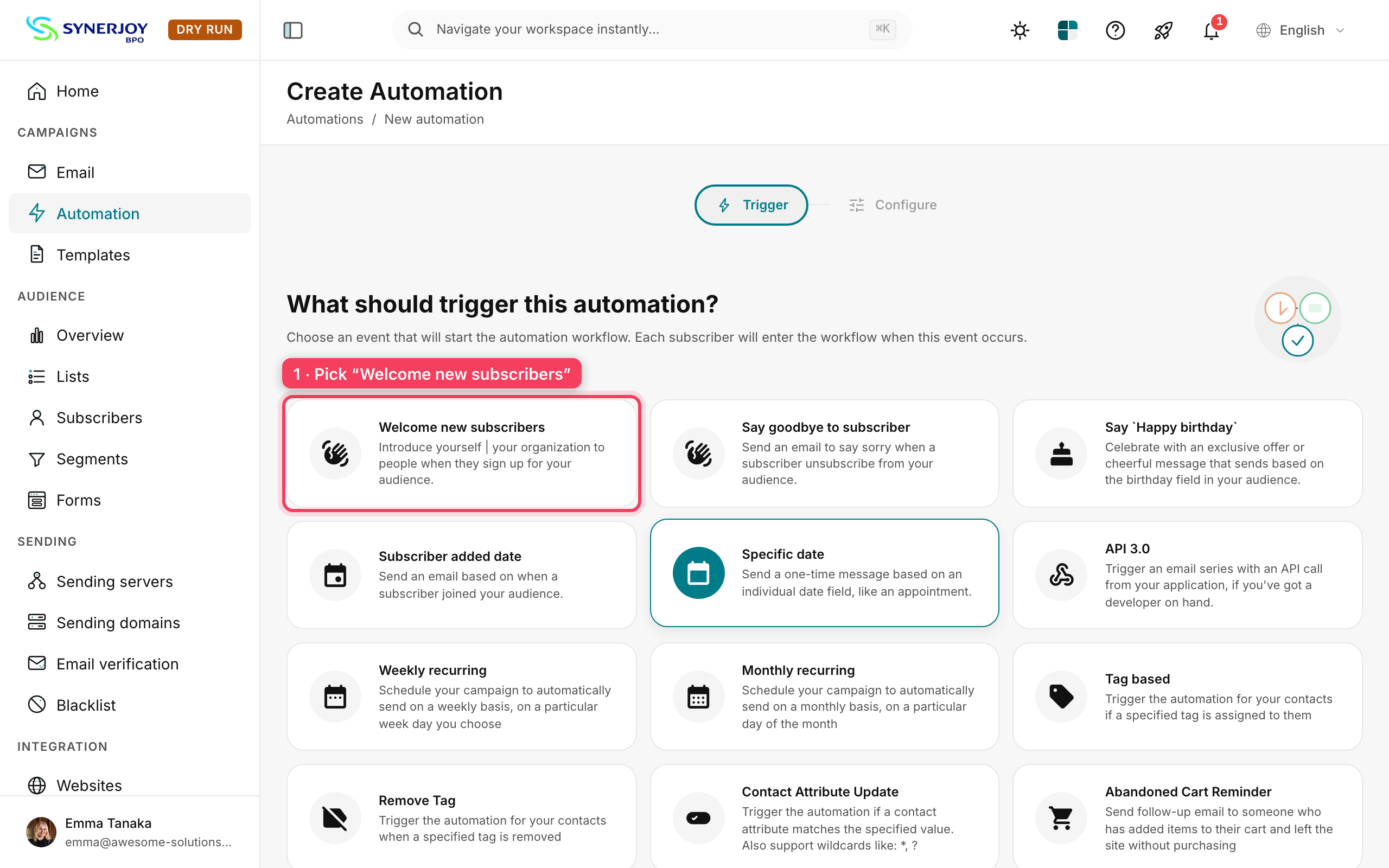
1. Select the trigger
Open Automation → New Automation and choose Welcome new subscribers.
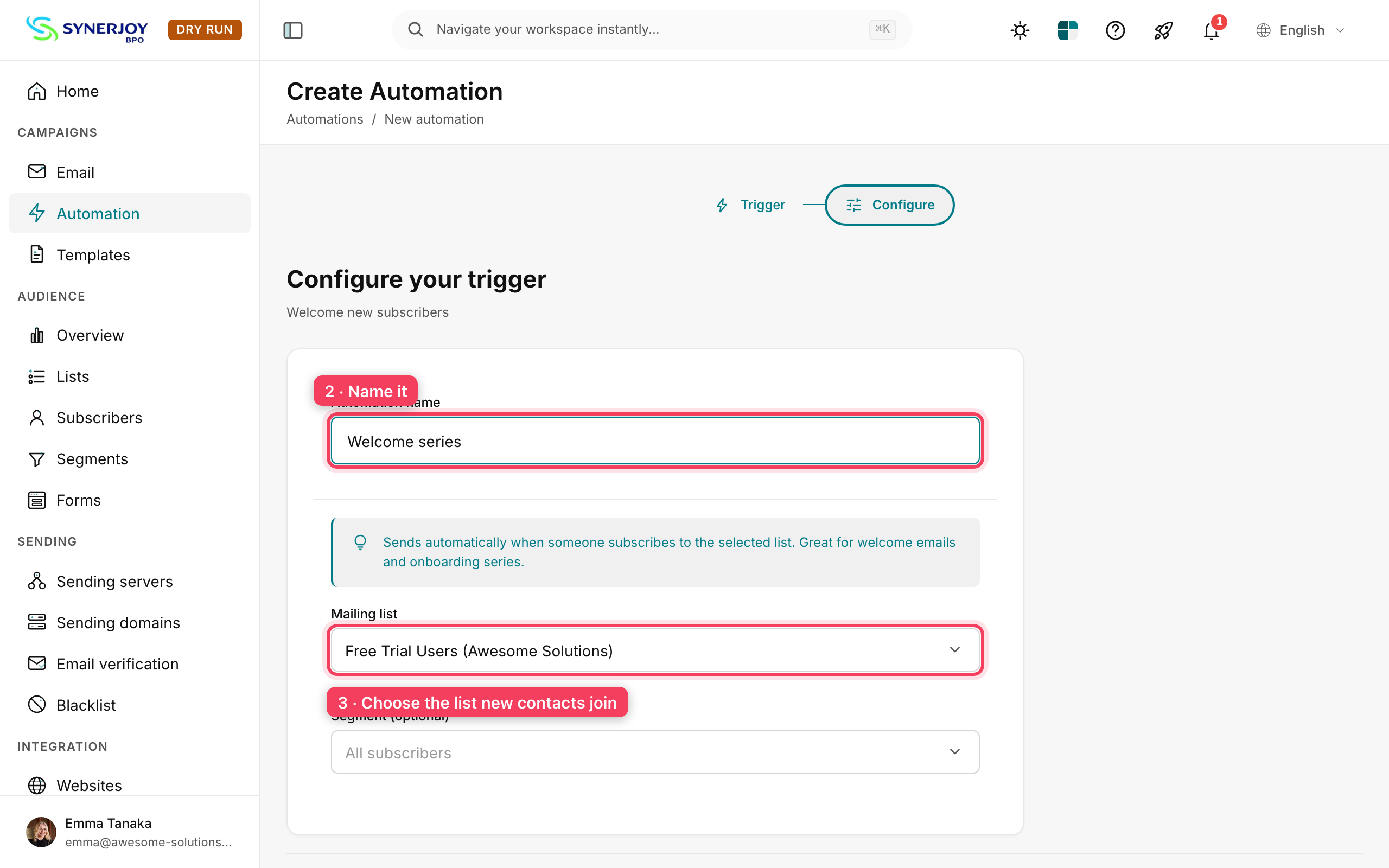
2. Configure the trigger
Enter an internal name such as Welcome series, choose the list new contacts join, and leave All subscribers selected unless you want a segment. Click Create automation.
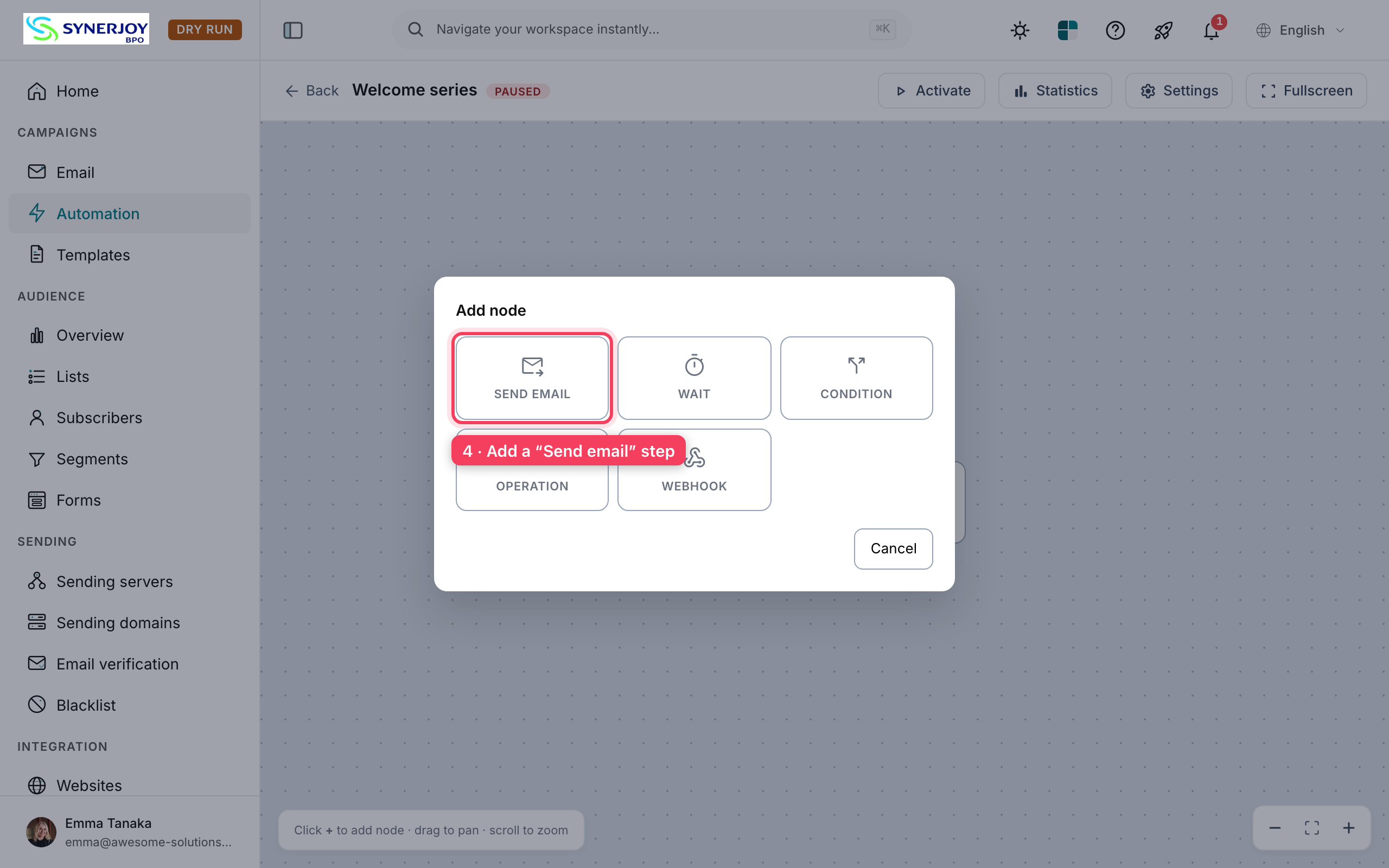
3. Add the email node
Click + beneath the trigger and choose Send email. Other node types include Wait, Condition, Operation, and Webhook.
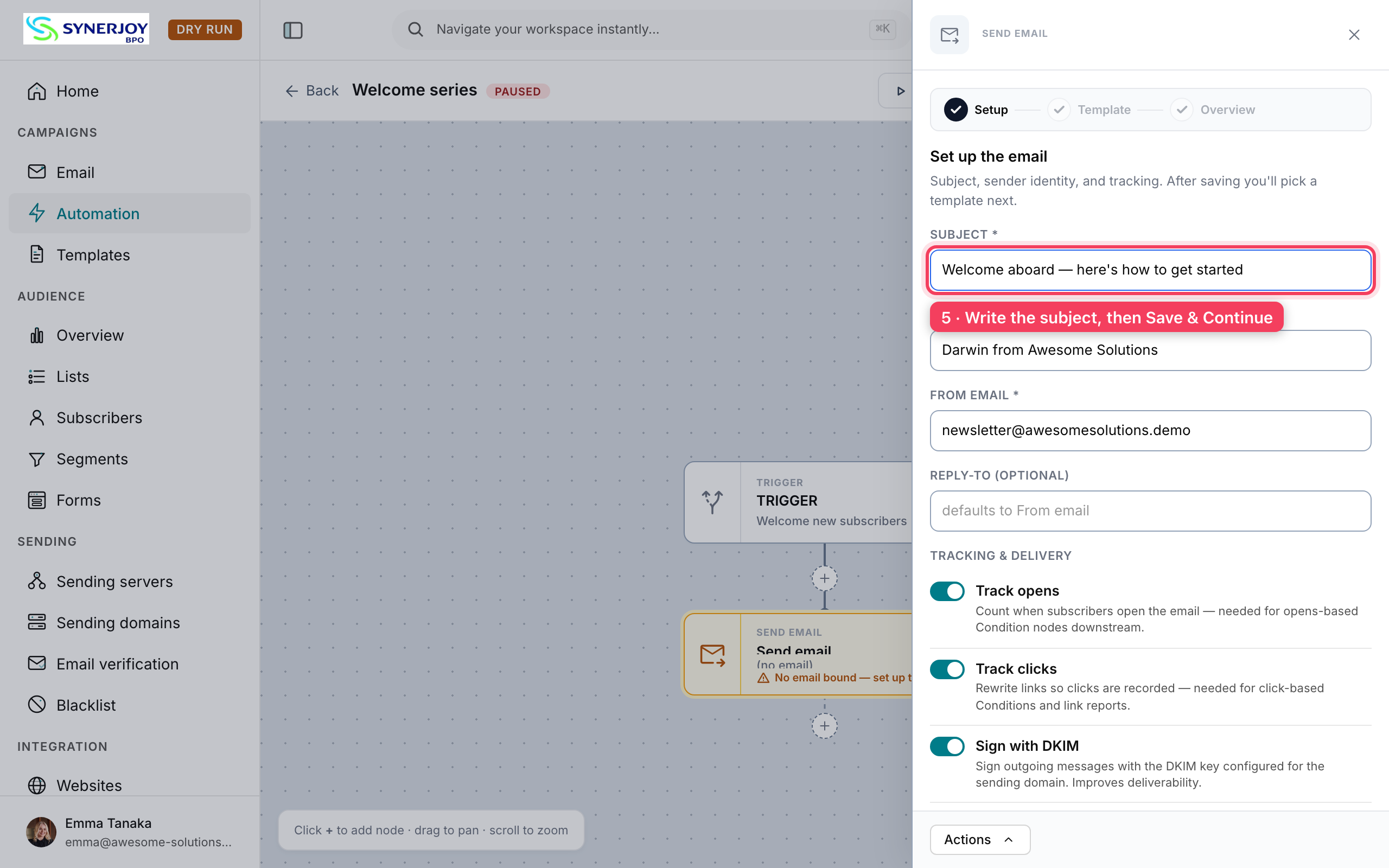
4. Write the message
On Setup, enter a subject and confirm the sender defaults. Configure open and click tracking as appropriate and confirm DKIM signing. Click Save & Continue, open Browse templates, and edit a starter design. Review the result on Overview.
5. Activate and test
Click Activate and add a test subscriber through your normal signup flow. Check that the email arrives and renders correctly. You can pause the flow from the editor.
Build a welcome series
Add a Wait node, then another Send email with a resource or useful tip. Add a Condition node to branch the sequence when appropriate.
Troubleshooting
- No email bound: complete the Template tab.
- No welcome message: confirm the flow is active and the test contact joined the configured list after activation.
- Message goes to spam: check sending-domain authentication and the delivery path.