Collect feedback with a survey funnel
A survey funnel has a questionnaire and a thank-you page. Share its public address or send personalized links from a campaign.
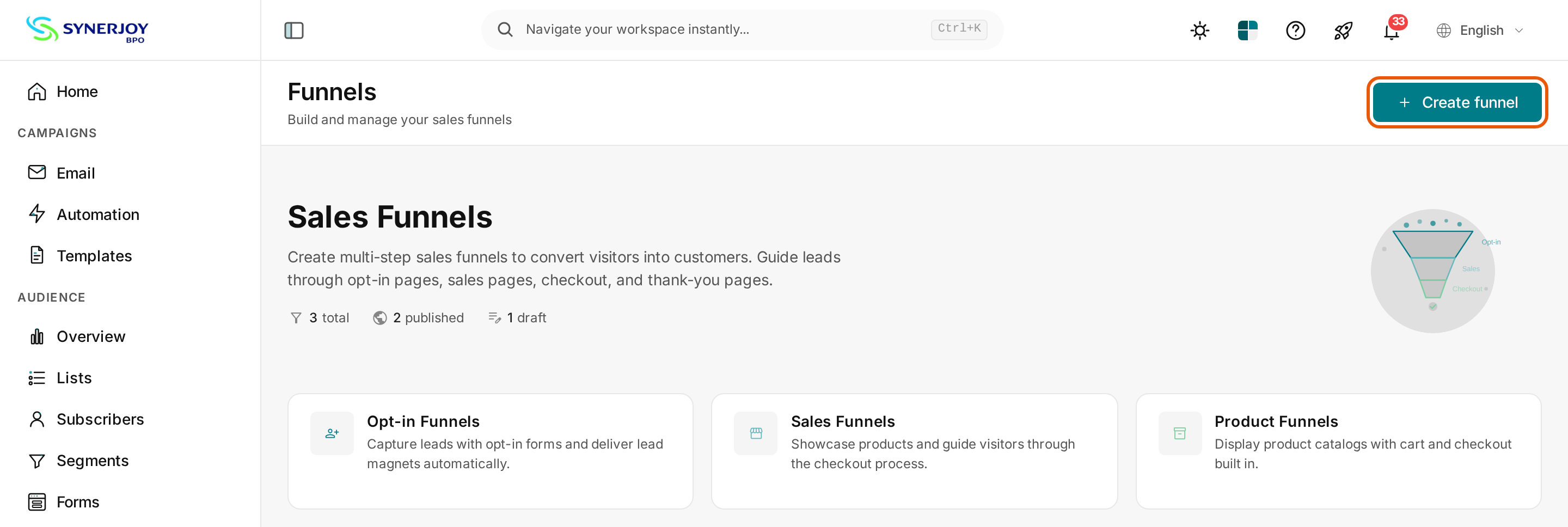
1. Open Funnels
Under Funnels, click Create funnel.
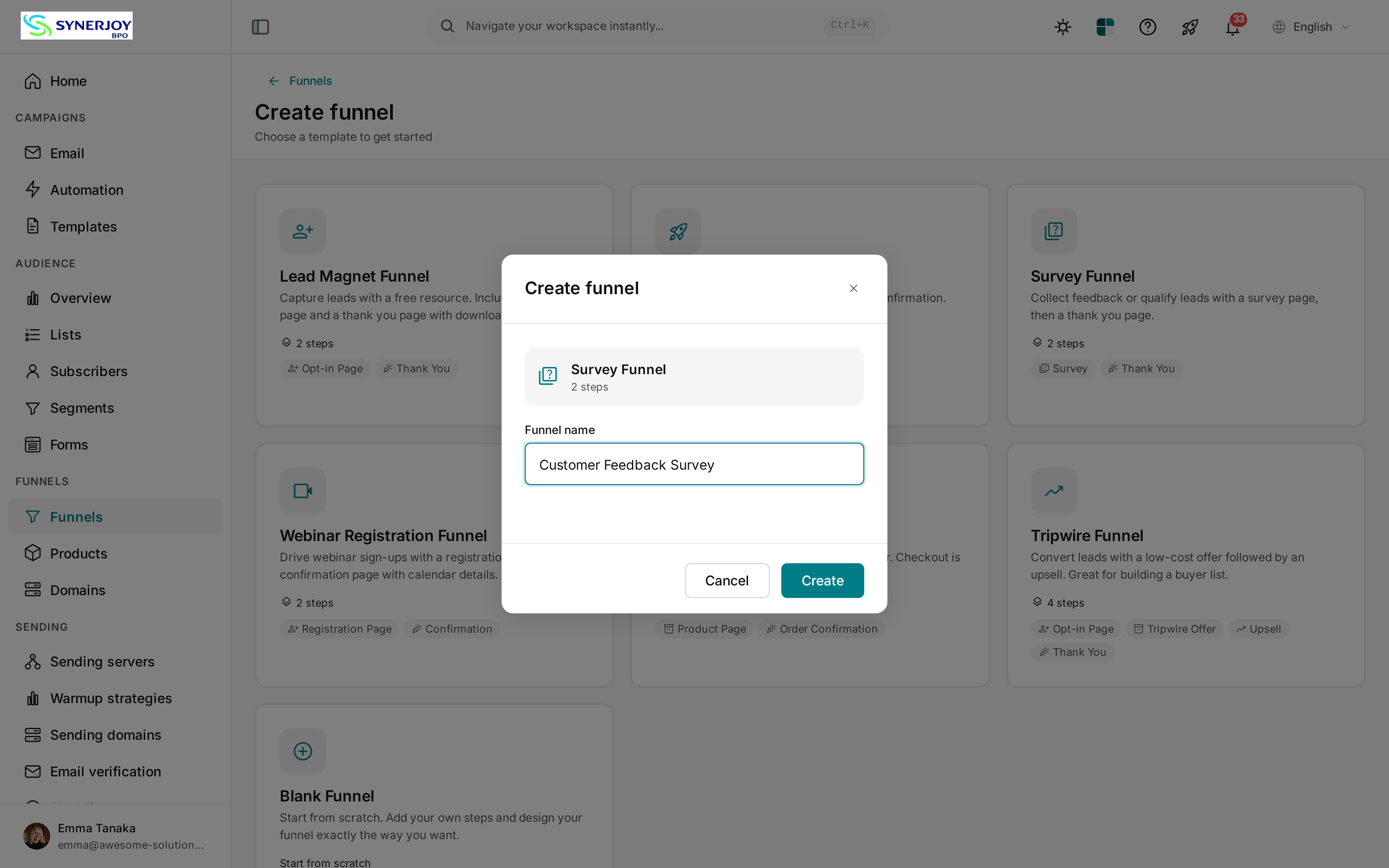
2. Choose a template
Select Survey Funnel, give it a name such as Customer Feedback Survey, and click Create. The example address is /f/customer-feedback-survey.
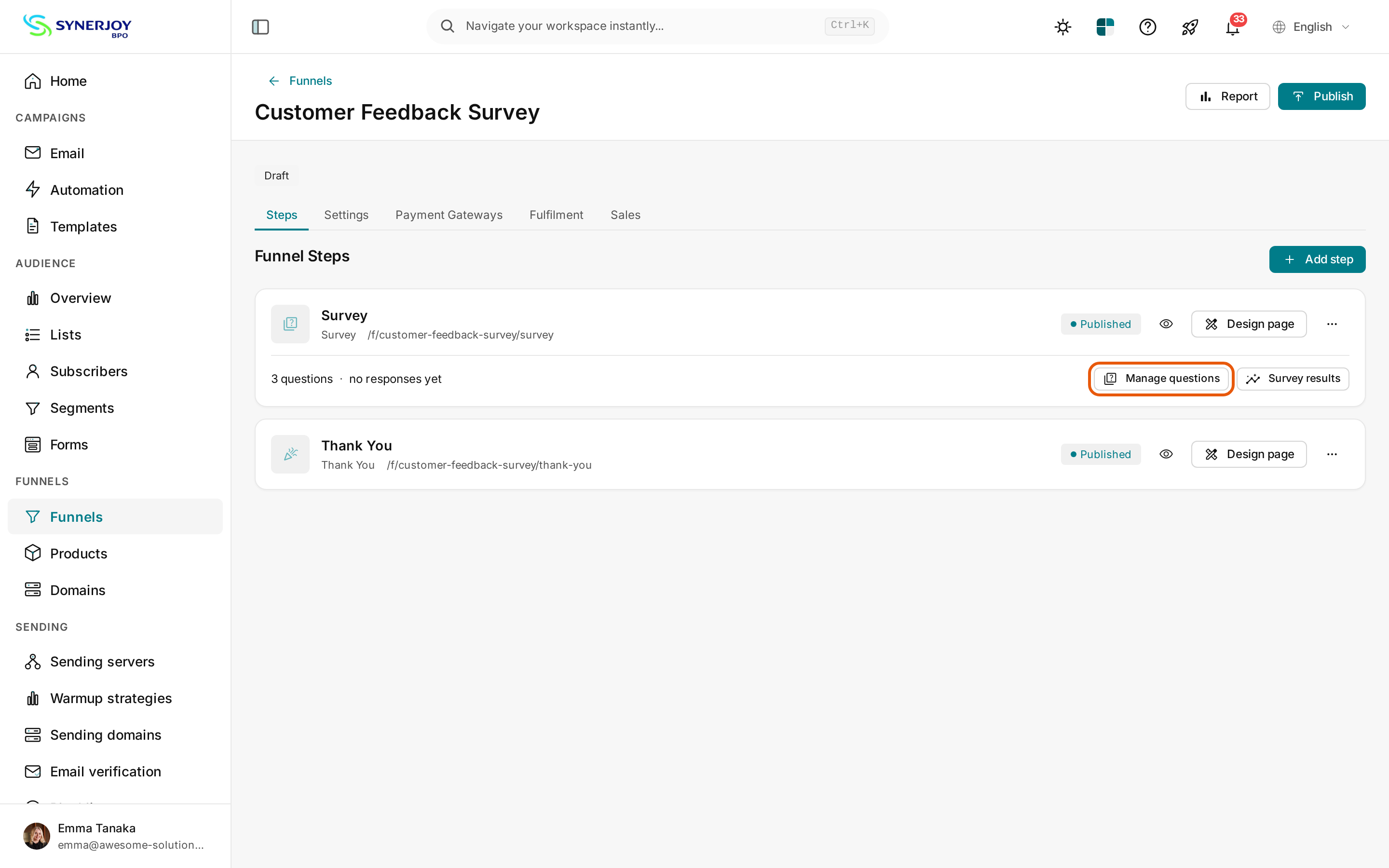
3. Review the steps
The Steps tab shows Survey and Thank You. Choose Manage questions under Survey.
4. Edit the sample questions
Click a question to edit its text, help, required status, or options. Drag its handle to reorder it. Available types include Short text, Long text, Single choice, Dropdown, and Multiple choice.
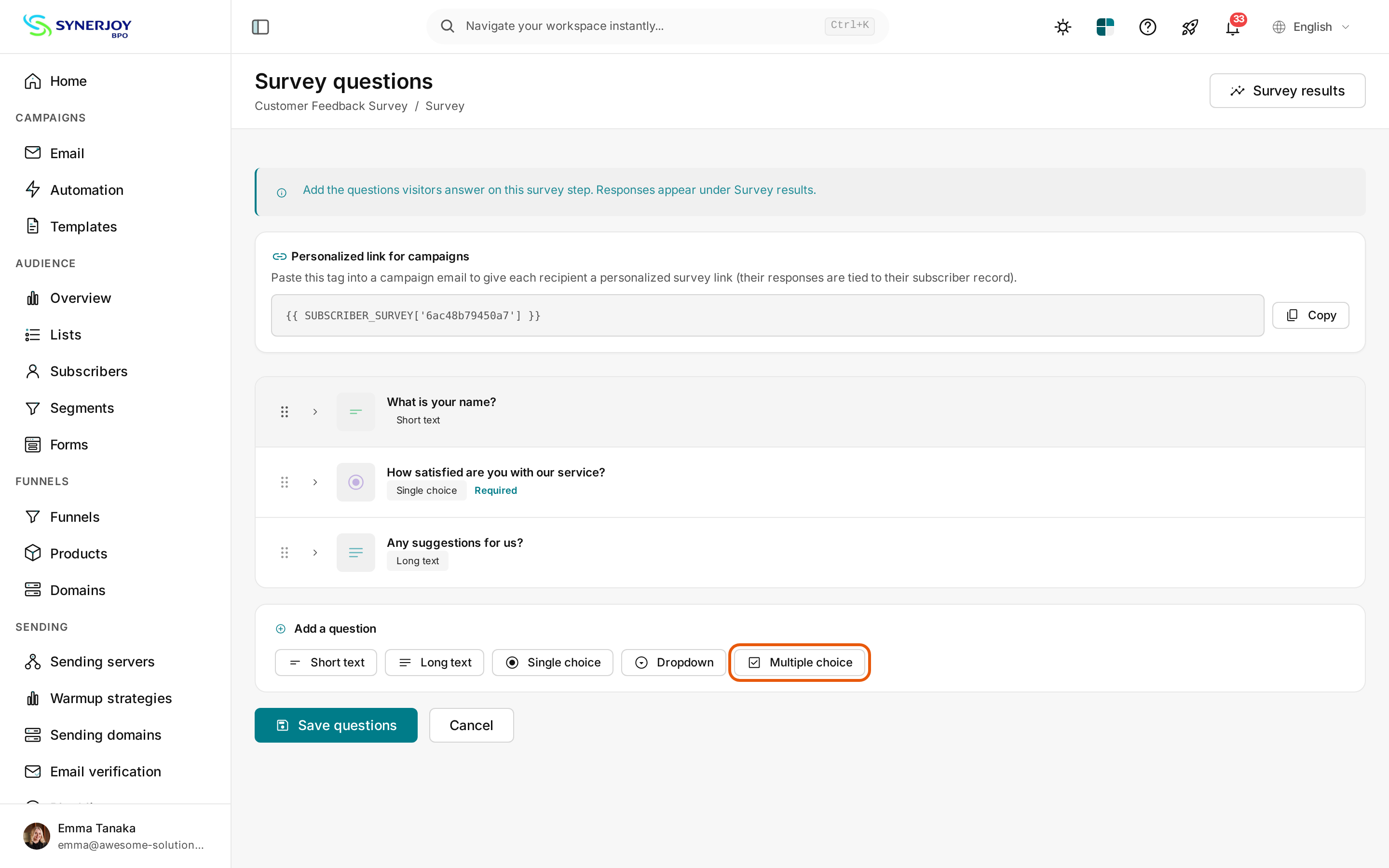
5. Add a question
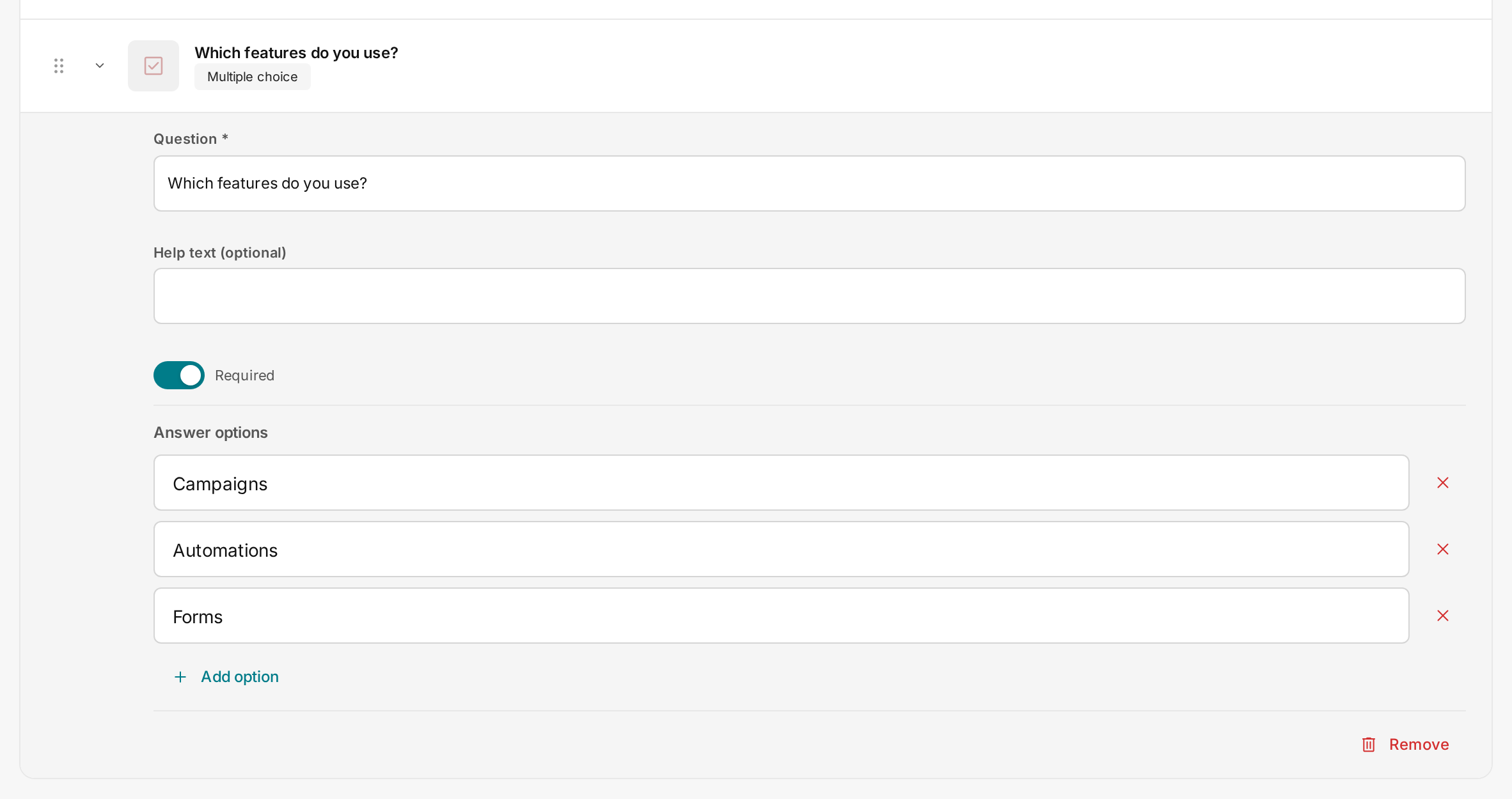
Choose Multiple choice, enter “Which features do you use?”, and add Campaigns, Automations, and Forms as options. Enable Required if appropriate.
6. Save your questions
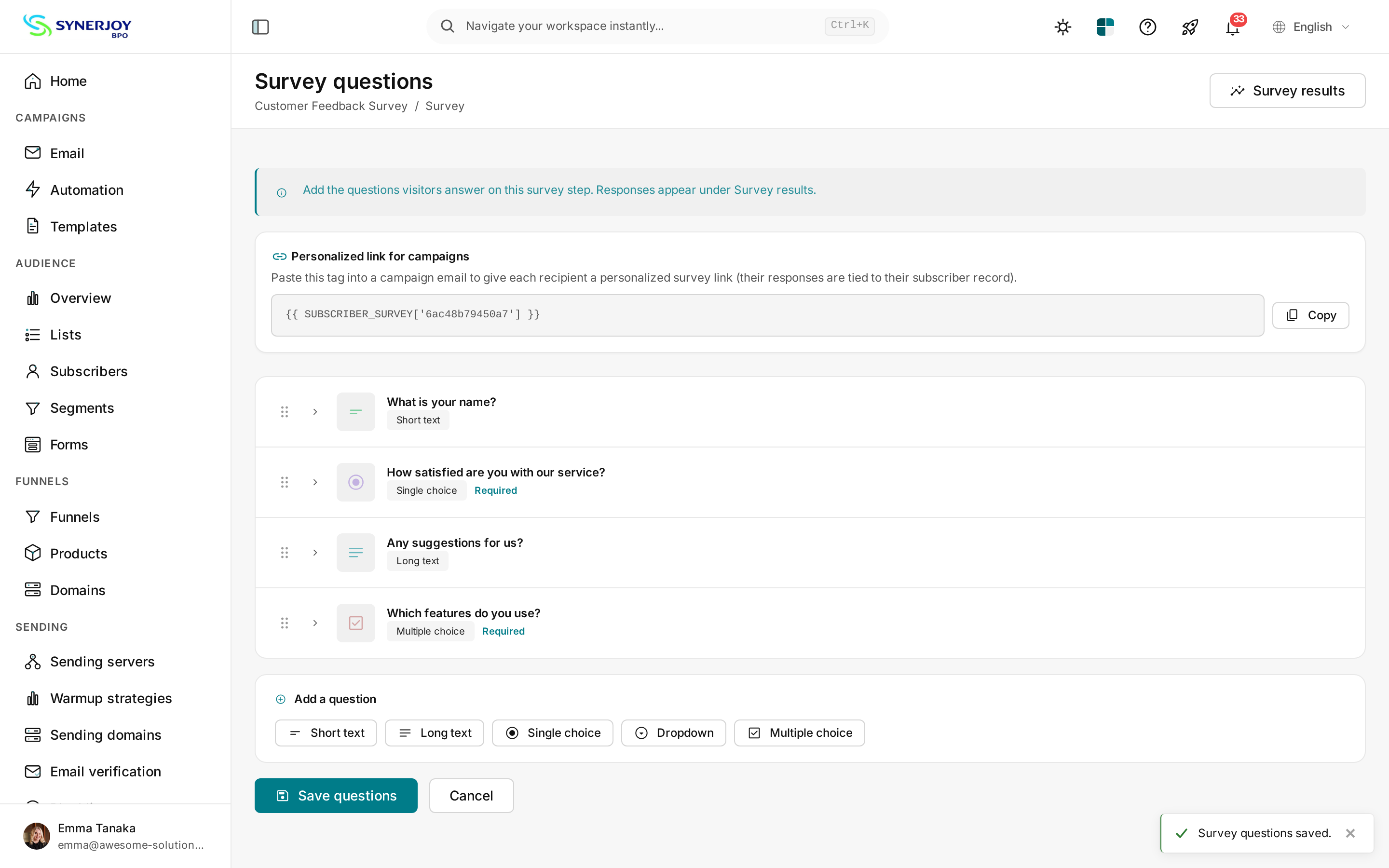
Click Save questions and check the confirmation before leaving.
7. Publish
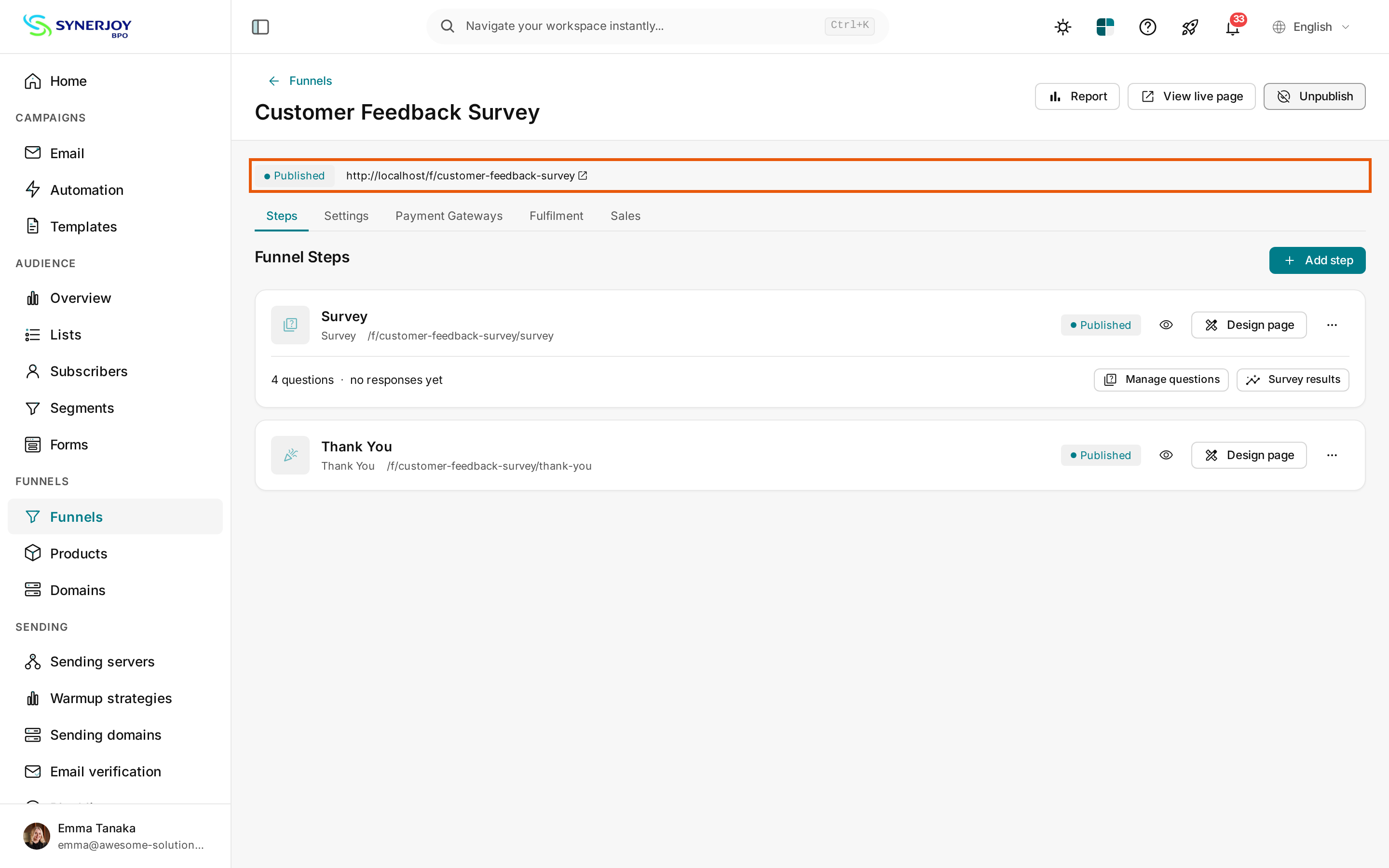
Return to the funnel and click Publish. Check the status and public address.
8. Test the live form
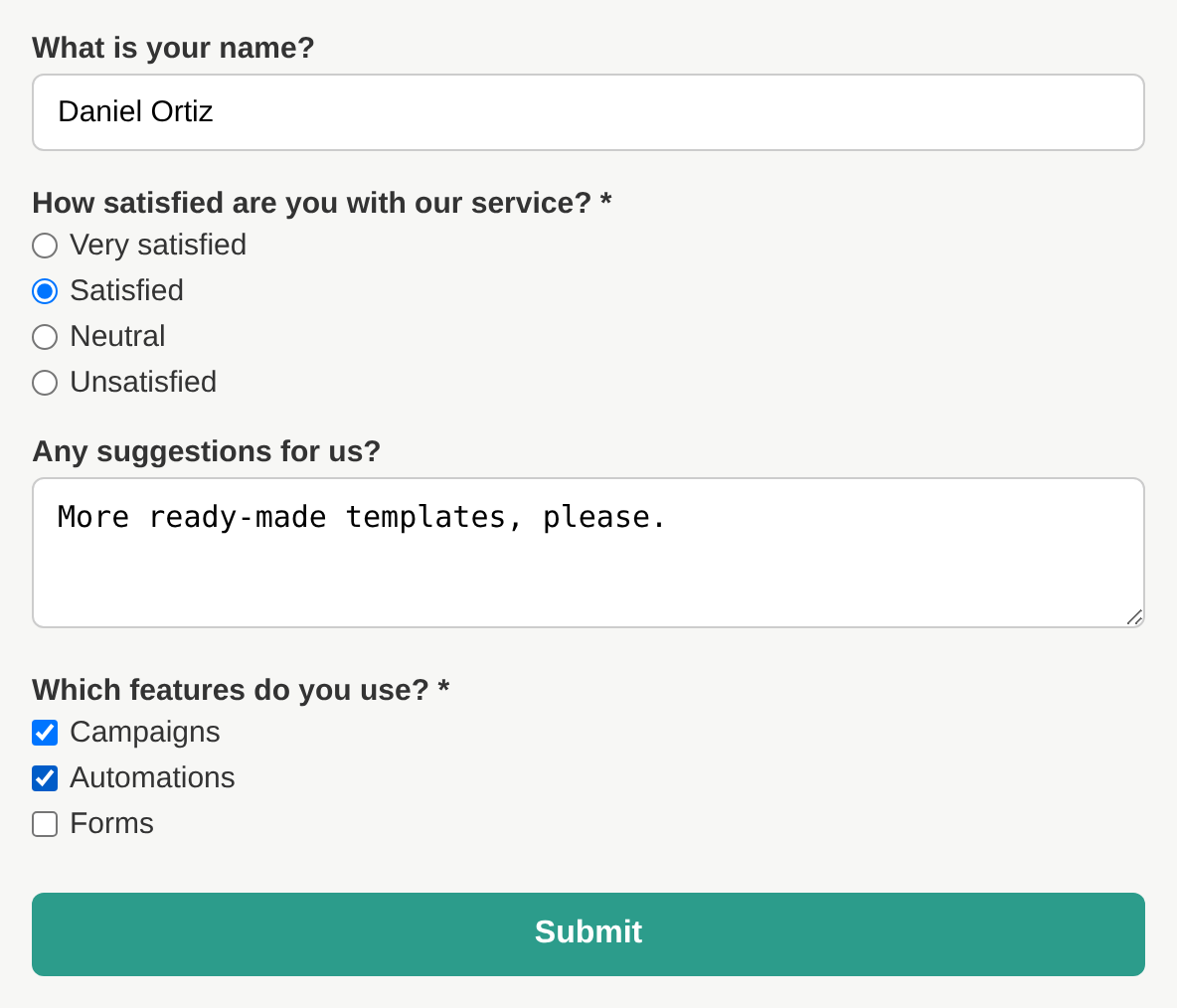
Click View live page, fill in the form, and click Submit. Try leaving a required field empty to check validation.
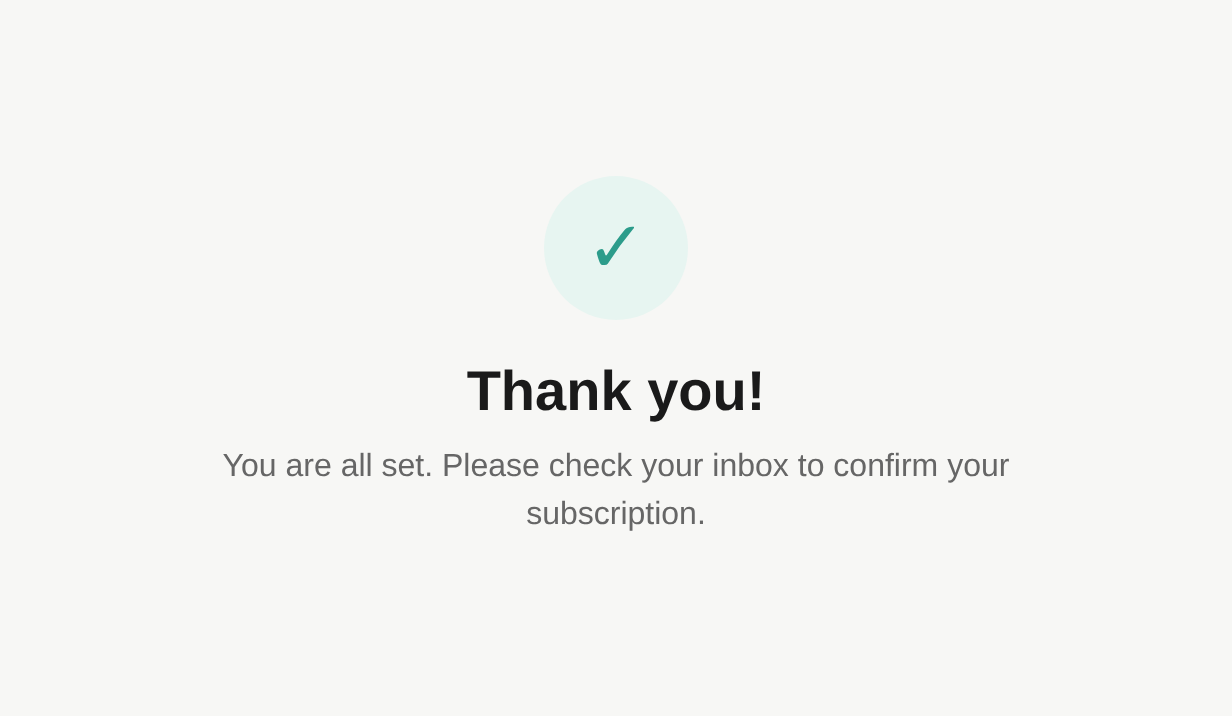
9. Review the thank-you page
Confirm the page appears after submission. If it asks users to confirm a subscription, change the copy through Steps → Thank You → Design page.
10. Send personalized links
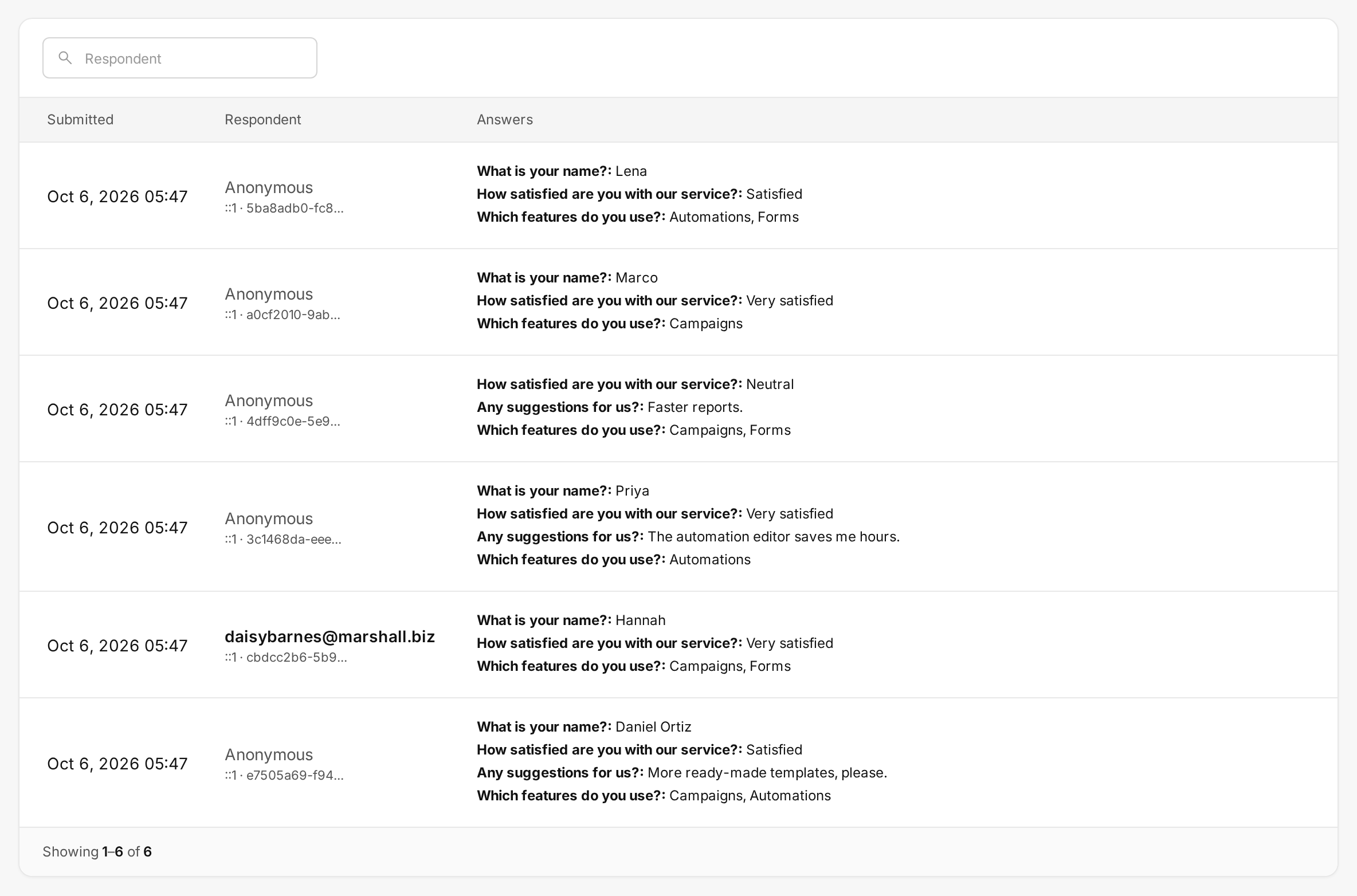
Open Manage questions and copy the tag from Personalized link for campaigns. Paste it into your campaign. A personal link can identify the subscriber. Responses from the plain address appear as Anonymous.

11. Read the results
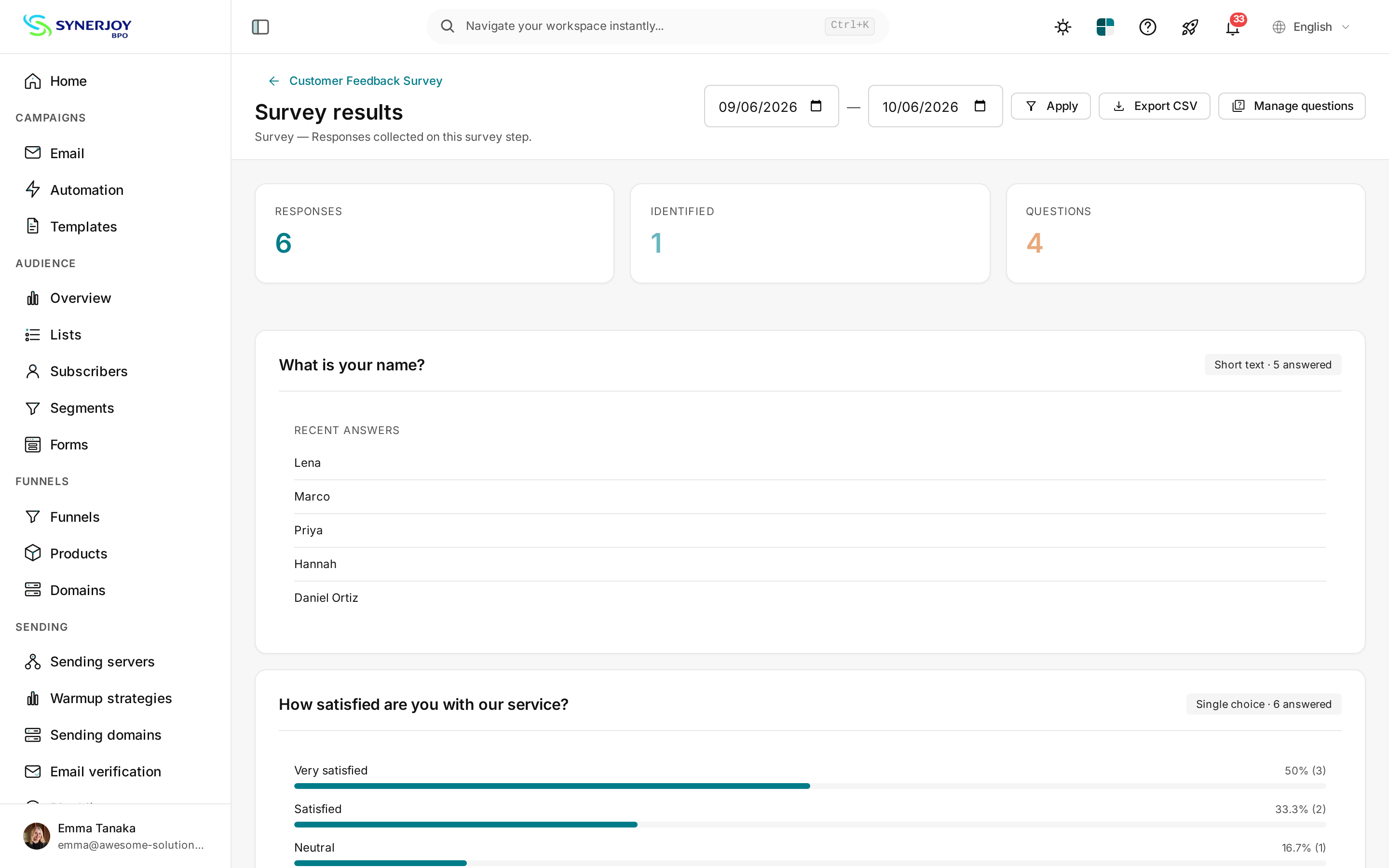
Open Survey results from the Steps tab. Review Responses, Identified, and Questions. Text cards show recent answers and choice cards show counts and shares. Adjust the dates and click Apply.
12. Inspect or export responses
Search the responses table by email, or click Export CSV to download the selected date range with one row per response.
13. Open the funnel report
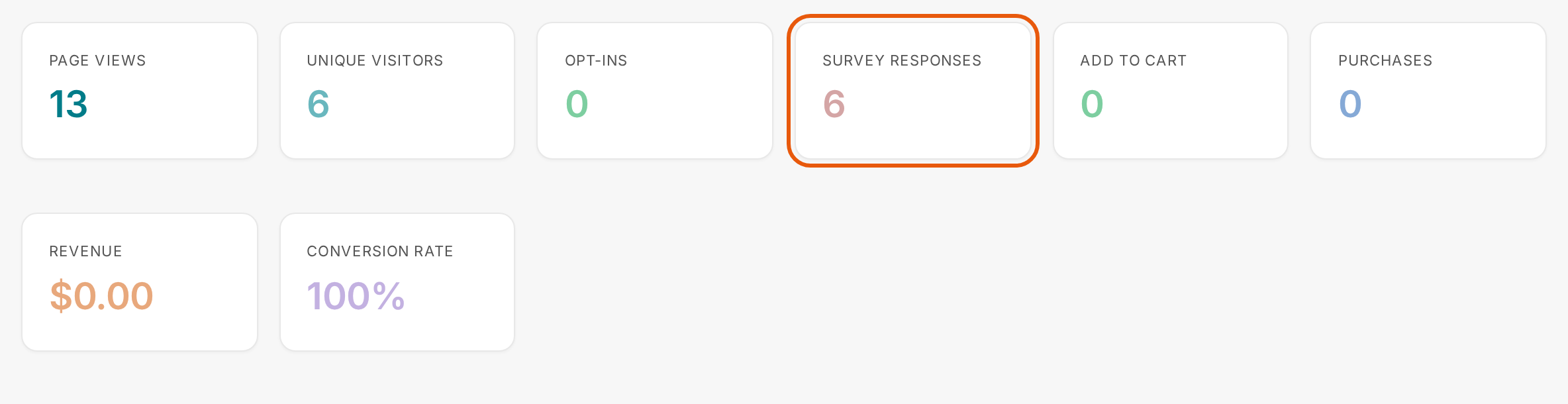
Click Report, then Survey responses to return to the results.
Common issues
- Missing Funnels menu: ask your administrator to confirm that Funnels is enabled.
- Public URL returns 404: confirm the funnel is published and check the URL.
- Survey unavailable: add and save at least one question.
- Response appears anonymous: check that the respondent used their personalized link and belongs to the list configured for the funnel.